How to Fill a PDF Form Without Adobe Acrobat (Free, No Upload)
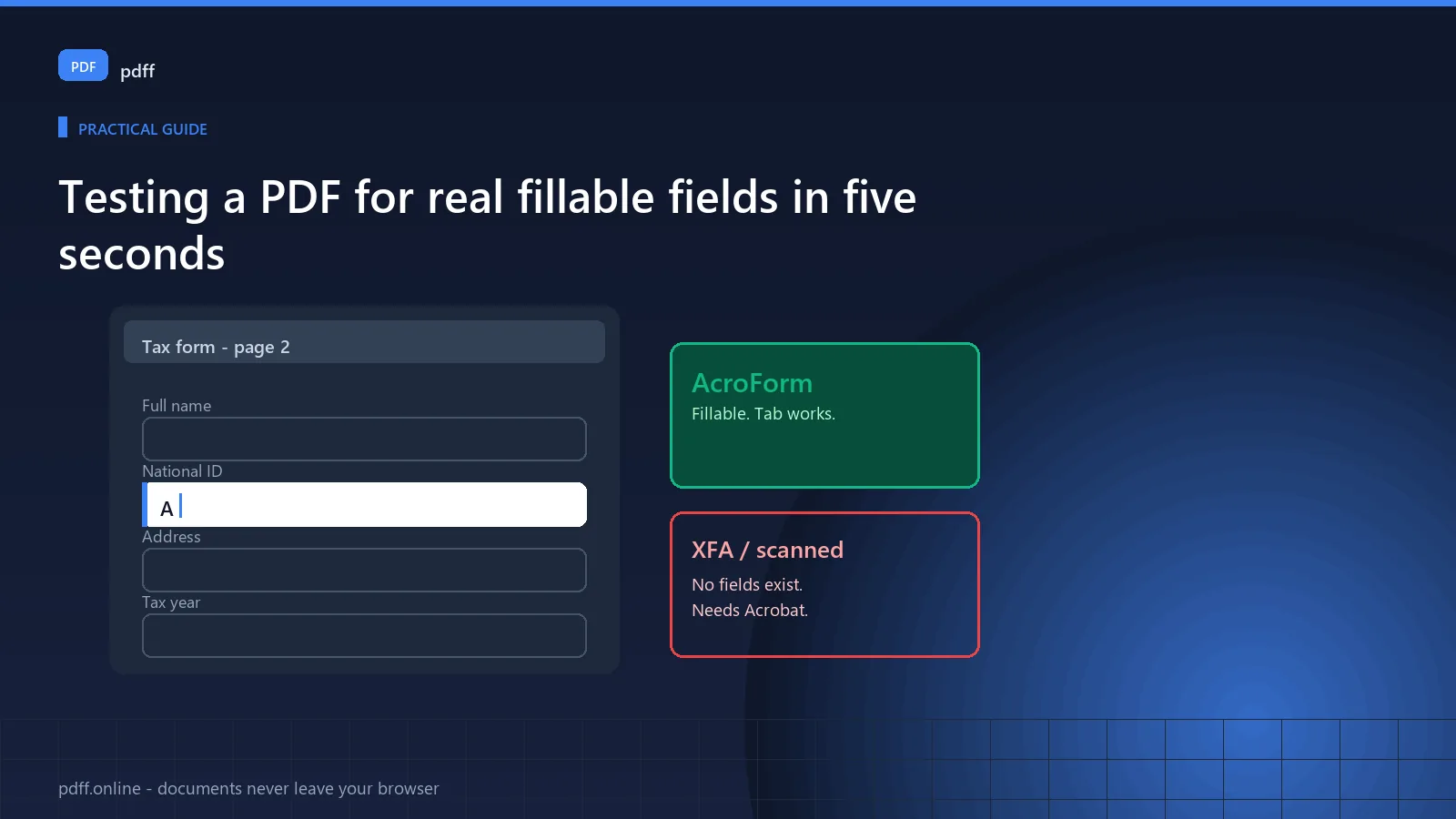
You can fill in a PDF form without Adobe Acrobat, but only if the PDF contains real fillable fields. If it does not, no free tool can help, because there is nothing in the file to fill in. Here is how to tell which kind you have, in about five seconds.
That distinction explains most failed attempts. People open a form, find no fields, and assume the tool is broken. It is not. The document is a picture of a form, not a form.
The two kinds of PDF form
AcroForm — the fillable kind
A proper PDF form has interactive text fields, checkboxes and dropdowns embedded in it. You can tab between them, click to tick a box, and the document is designed to accept input. These work in any browser, no software needed.
XFA — the kind that needs Acrobat
XFA is Adobe's own XML-based format. It renders as a web page inside the PDF, handles complex logic, and is not supported by any browser-based tool. Most banks and tax authorities issue XFA forms.
If your form is from a bank or a tax authority
It is probably XFA, and you probably need Adobe Acrobat. There is no workaround in a browser. Check the form before spending time elsewhere.
Scanned or flattened — no fields at all
Someone printed a form and scanned it back. What you have is an image of a form. There are no fields, so nothing can be filled electronically. You would need OCR plus manual positioning, which produces output that is hard to submit reliably.
Test your form in five seconds
- Open the PDF in your browser.
- Press Tab.
- If the cursor jumps between boxes and fields, it is a real AcroForm. You are done.
- If nothing happens, the cursor just moves through the text, there are no fields.
That is the whole test. It works because in an AcroForm the fields are real interactive objects, and Tab cycles through them. In a flattened document, Tab is just moving a text cursor.
Filling it in your browser
Once you know it is a real form:
- Open the PDF and click directly on the field you want. You do not need to find it in a list.
- Type into it. Tab moves to the next field.
- Tick checkboxes by clicking them.
- Flatten it when you are done, so your entries cannot be changed or separated from the document.
- Download and check the size before uploading.
Flatten before you submit
Until a form is flattened, the values you entered sit as a separate layer over the original document. Anyone with the right tools can change them, and some systems mishandle the layer. Flattening bakes your entries into the page.
This matters most for anything with tax, banking or legal weight. Flatten before submitting.
Signing
For a signature, you have three genuinely different options, and they are not equally valid:
| Method | What it is | Legal standing |
|---|---|---|
| Draw / type and flatten | Signature image applied to the page, flattened into the document | Widely accepted. This is what most people need. |
| Certificate-based digital signature | Cryptographic signature from an identity certificate, inside the file | Much stronger. Required by some banks, government procurement and eIDAS contexts. |
| AcroForm signature field | The document's own signature field, filled and locked | Strong when the form defines the field; check the receiving party's requirement. |
Know which one you need before you sign. If the counterparty asks for a digital certificate signature, a drawn signature will be rejected, and there is no way to convert one into the other afterwards.
What happens to the document
Worth being precise, because form-filling tools often upload without saying so.
If a tool works in your browser, the document is read from your disk by your own browser and processed locally. There is no upload, no copy on a server, and nothing retained once you close the tab.
This matters more for form-filling than for most other PDF tasks. A tax form contains your social security or national identity number, income, and bank details. A scanned payslip contains your employer and salary. These are among the most sensitive documents anyone processes online, and they are routinely uploaded to free tools that make no statement about what happens afterwards.
The check. Open your browser's network panel, load the document, and fill a field. If you see an upload request, the file is being sent somewhere. If you do not, it stayed on your machine. That takes thirty seconds and settles the question.
Common questions
Why can I not type into the PDF?
Almost always one of three reasons. The form is flattened or scanned, so it has no fields. The form is XFA, which needs Adobe Acrobat. Or the text layer is present but the document is in a protected mode. Test with Tab first: if Tab does not move between fields, there are no fields.
Can I fill a form on my phone?
Yes, for AcroForm documents. Tapping a field activates it and the on-screen keyboard handles entry. Flattening is usually easier on a desktop, and a phone is a poor choice if you have more than a handful of fields.
Why is my filled form rejected when I upload it?
Four usual causes. The form was not flattened, so the values sit in a separate layer the receiving system ignores. The signature field was left unfilled. The file exceeded the size limit. Or the portal requires a certificate-based digital signature rather than a drawn one. The first is by far the most common.
Can I fill a government tax form this way?
Depends entirely on the form. If it is an AcroForm you can fill and flatten it. If it is XFA, you need Acrobat. Some tax authorities also require a certified digital signature for submission, which is a different mechanism from filling in fields.
Does filling a form change the original document?
Your copy, yes — that is the point. The original file on your disk is untouched unless you overwrite it. Flattening produces a new file; keep the unflattened original until you have confirmed the flattened version is correct.
Is it safe to fill in bank details this way?
Where the tool runs locally, yes, because the document never leaves your device. Where it uploads, you are handing a document containing your bank details to a third party whose retention policy you do not control. This is the single most important thing to establish before filling in a financial form online.
Try it yourself
Works in your browser. The file is never uploaded to a server.
Fill a PDF formFree, no sign-up, no upload. Works offline once loaded.
No analytics on this page
This page ships without a tracking script. Aggregate analytics are collected only on the tool pages, and only if you accept them in the cookie banner. No document you open is ever transmitted. See the privacy policy.